Using Trinity — overview
Trinity is a chat workspace for HPC. Instead of SSHing into a login node, writing batch scripts, and babysitting the queue, you tell Trinity what you want in plain language and it does the mechanics for you — on ALCF (Polaris, Aurora, Crux, Sophia, Sirius), NERSC (Perlmutter), and OLCF (Frontier).
Where it lives
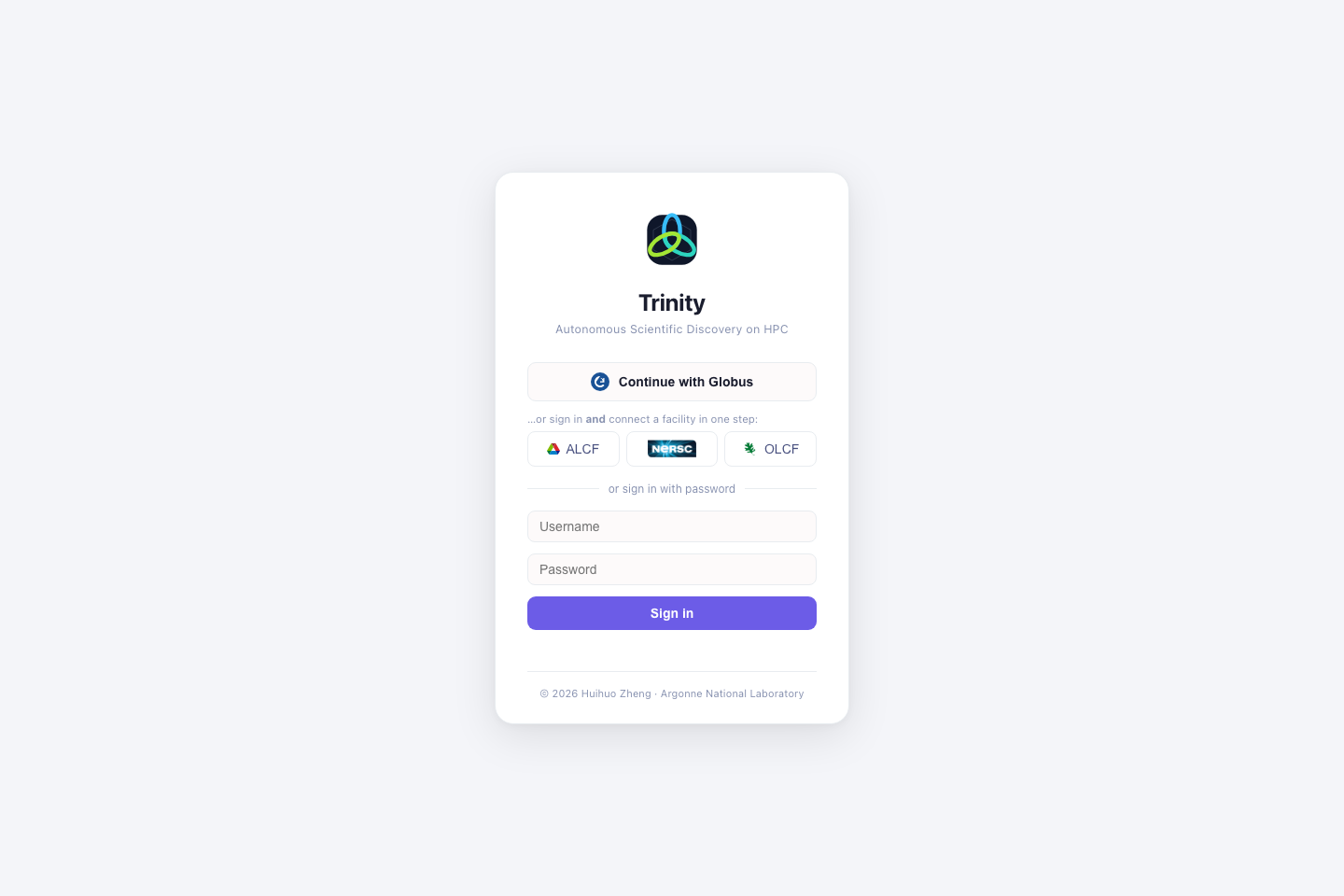
Trinity runs in your browser at https://trinity.lionlambstone.org. You sign in with Globus using your existing DOE facility identity — no new password required.
What you can do
- Run jobs — DFT/MD/ML/benchmarks and arbitrary batch work. Trinity writes the job script, submits it, and monitors it. → Running HPC jobs
- Build & port software — compile applications from source on a system, or port CUDA → Intel/SYCL or HIP. → The chat interface
- Browse & edit files — a built-in file browser over your project workspace, with upload/download. → Files & projects
- Check system status — availability, queues, allocations, incidents.
- Move data — Globus transfers between facilities and your machine.
- Collaborate with agents — bring domain agents into shared rooms and
@mentionthem. → Agents & rooms
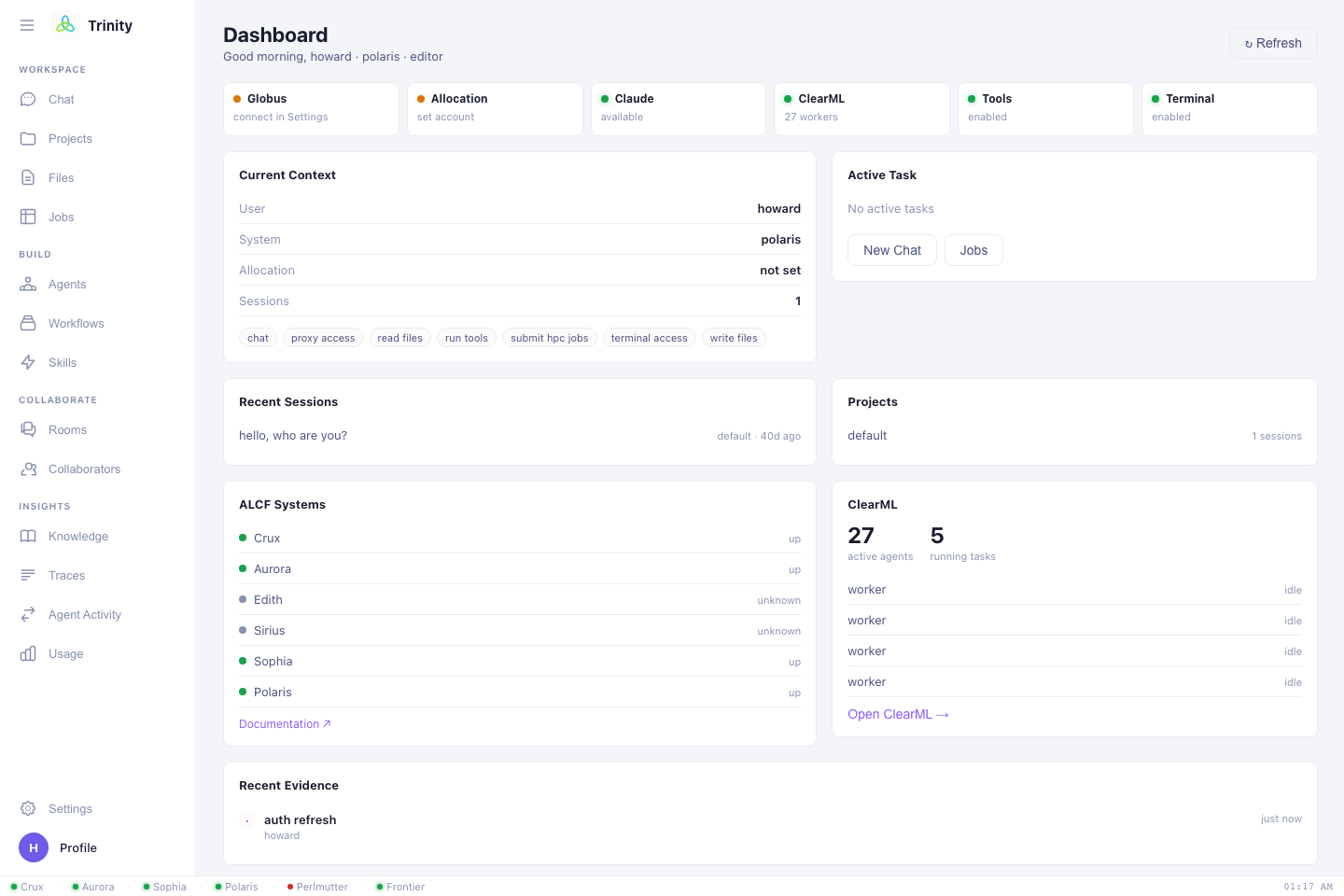
The interface at a glance
A left sidebar switches between views; the most-used ones:
| View | What it's for |
|---|---|
| Dashboard | Landing page — greeting, quick links, system stats. |
| Chat | The main workspace — ask for work, watch it happen, see results. |
| Projects | Organize chats and files into project workspaces. |
| Files | Browse / read / edit / upload files in your workspace. |
| Jobs | Live status of background tasks and HPC submissions. |
| AgentsHub | Browse available agents and their cards. |
| Agent Rooms | Group conversations with people and agents. |
| SkillHub | Browse the catalog of reusable HPC skills. |
| Knowledge Store | Search validated HPC knowledge by system/topic. |
| Trace Timeline | A detailed timeline of every action in a session. |
| Settings | Custom instructions, HPC defaults, models, tokens, profile. |
A typical first session
- Log in with Globus.
- Open Settings → HPC & Compute and set your default system, queue, allocation, and HPC username. → Settings
- In Chat, type what you want — e.g. "Check if Polaris is up, then submit a
1-node debug job that runs
hostname." - Watch progress stream in; open Jobs to track the submission.
- Read results in the chat or grab output from Files.
Next: Getting started →