Agents & rooms
Beyond one-on-one chat, Trinity lets you bring specialist agents and other people into shared conversations. This is how multi-step, multi-domain campaigns get coordinated.
AgentsHub
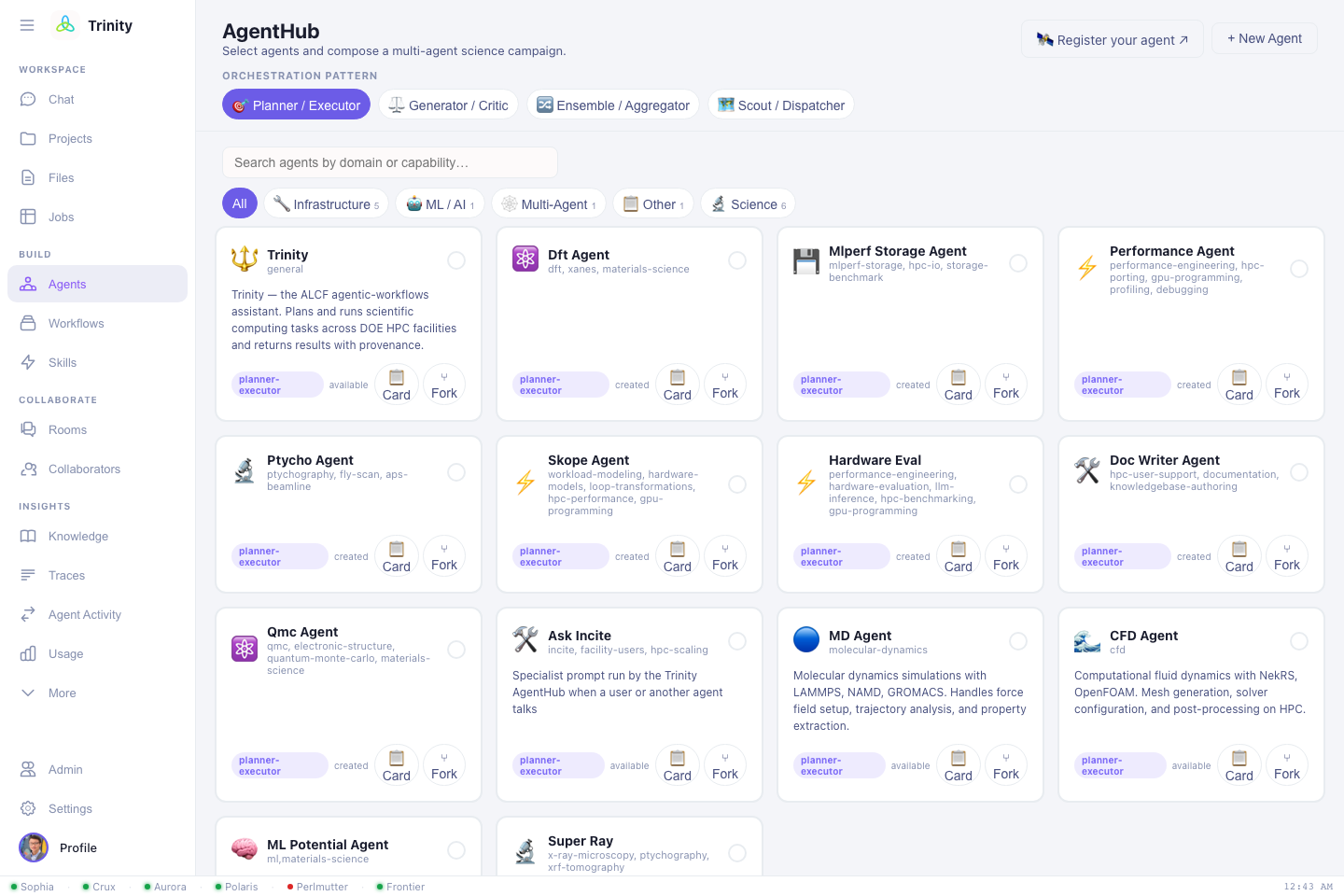
The AgentsHub view lists the agents available to you — both Trinity's built-in domain agents and external third-party agents that have been registered. Each agent has a card describing:
- Profile — what it does, its domains, and which systems it targets.
- Skills — the named capabilities it offers.
- Knowledge — the validated domain facts it draws on.
- Query/response contract + token — how it's called (for developers).
Click an agent to view its card; use Copy A2A JSON to grab the machine-readable, A2A-aligned descriptor.
Agent Rooms (group conversations)
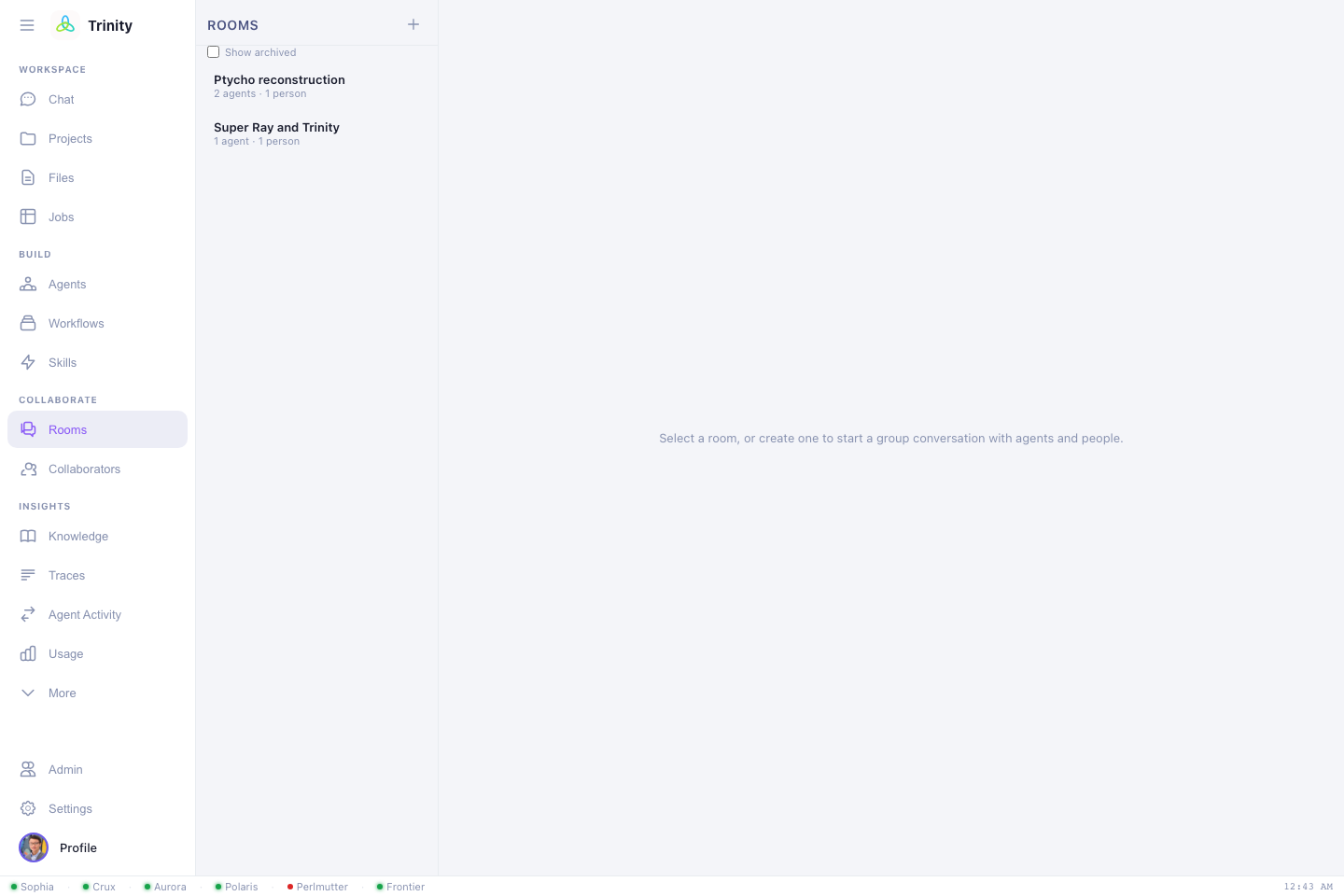
An Agent Room is a shared space with human members and AI agents, a durable transcript, and live updates. Use a room when a task spans more than one specialty — e.g. a DFT agent proposes structures, an ML agent screens them, and you steer the campaign.
Creating a room with agents and people together
Click New room, give it a name, and pick from two lists in the same dialog — Agents (from the AgentsHub) and People (your collaborators) — checking as many of each as the task needs. There's no separate flow for "add an agent" vs. "add a person": both lists live in the one room, and you're always included as a member.
The same dialog also sets the room's mode (mention-only or moderated), a max agent turns guard, and an optional max spend cap (see Tracking cost & setting a budget below).
Turn-taking
Rooms default to mention-only: an agent speaks only when a human @mentions
it, so there are no runaway agent-to-agent loops.
@dft-agent relax these three structures on Polaris, then @ml-agent rank them by formation energy.
An optional moderated mode lets a moderator turn pick the next speaker and lets agents hand off to each other — and it pauses for a human whenever it's your turn, notifying you if you've stepped away.
People are first-class
When it's a human's turn, connected members see a "🟢 Your turn" prompt; absent members get notified out-of-band (push / email / Slack via the Trinity identity), and the conversation resumes when they reply.
Managing a room after it's created
Open ⚙ Manage room (the room header) to rename it or change who's in it. Any member can add or remove agents; only the room's creator or an admin can change the people list — everyone else sees it read-only.
Exporting a room's transcript
The same Manage room panel has ⬇ Markdown and ⬇ JSON buttons. Both walk the room's entire history (not just what's currently loaded on screen) and download it as a single file — Markdown for sharing in a doc, issue, or email; JSON if you want the structured record (sender, timestamp, tool calls) for your own tooling.
Tracking cost & setting a budget
Every room with any recorded spend shows a live $spent[/ $cap] · tokens
readout next to its name, using the same per-model price table (Opus / Sonnet
/ Haiku, $ per million tokens) that drives the account-wide Usage view —
so a room's number and your overall usage report are always consistent.
To cap spend, set Max spend ($) when you create the room — leave it
blank for no cap. Once the room's running total reaches that cap, agents stop
replying and post a message flagging the cap instead; there's currently no
in-app way to raise the cap on an existing room, so pick it deliberately
upfront (or start a fresh room if you need more budget). The cap and the
readout both cover local Trinity agents only — an externally-hosted
@mention-able agent (see below) bills to its own infrastructure and isn't
metered or blocked by the room cap.
Bringing in your own agent
Any agent that speaks A2A (or OpenAI-chat / plain REST) can be made
@mention-able in Trinity rooms — it keeps running on your own infrastructure; you
just register a small public descriptor. That's the Extend side of this site:
Next: Roles & access →