Getting started
1. Open Trinity
Go to https://trinity.lionlambstone.org in your browser.
2. Sign in with Globus
Click Continue with Globus. You authenticate with your existing DOE facility identity (the same Globus login you use for data transfer), so there is no separate Trinity password to manage. A username/password field is also available, for admin-provisioned accounts.
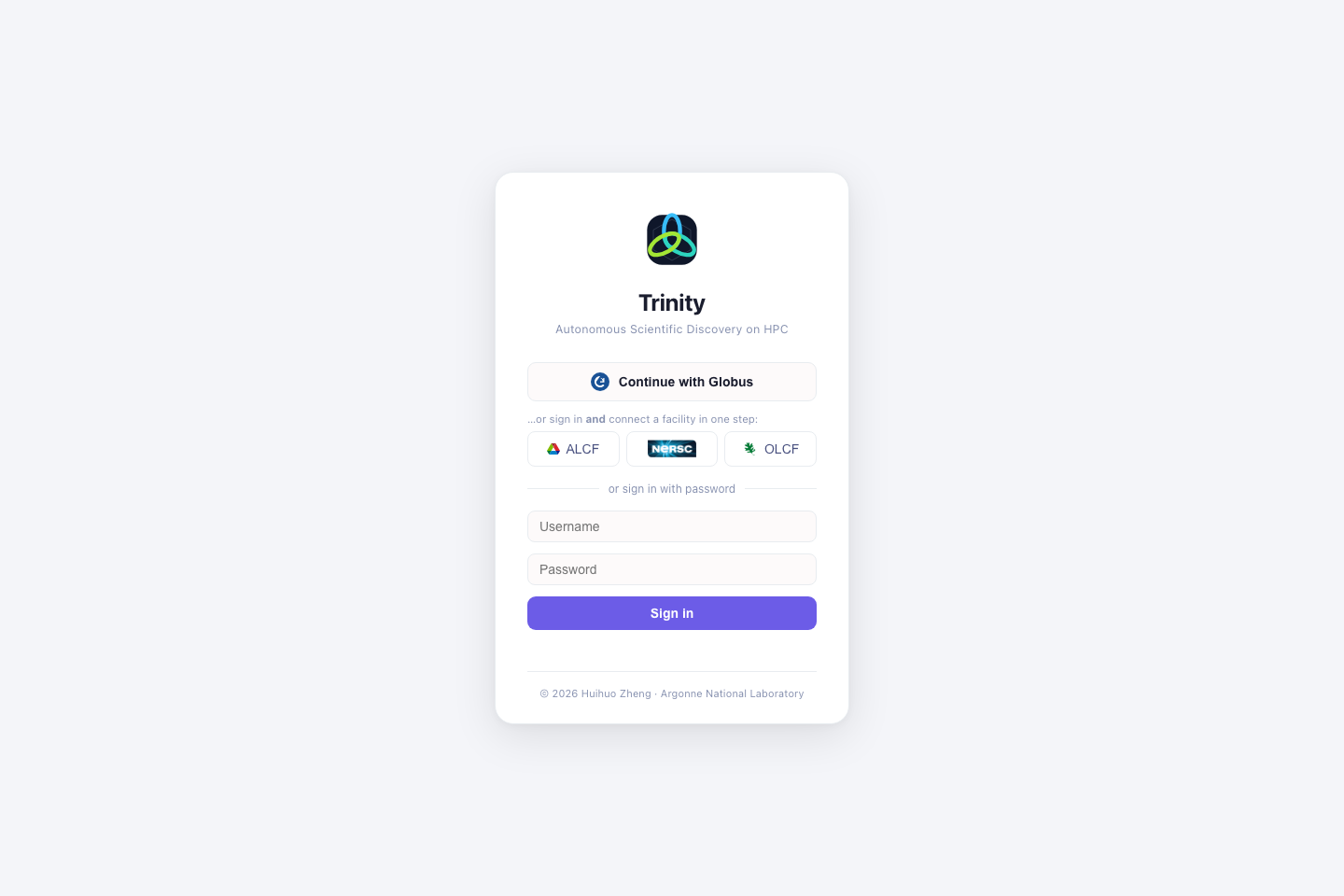
On first sign-in, Trinity auto-provisions your account with the editor role — enough to chat, submit jobs, run tools, and browse your own files. (See Roles & access for what each role can do.)
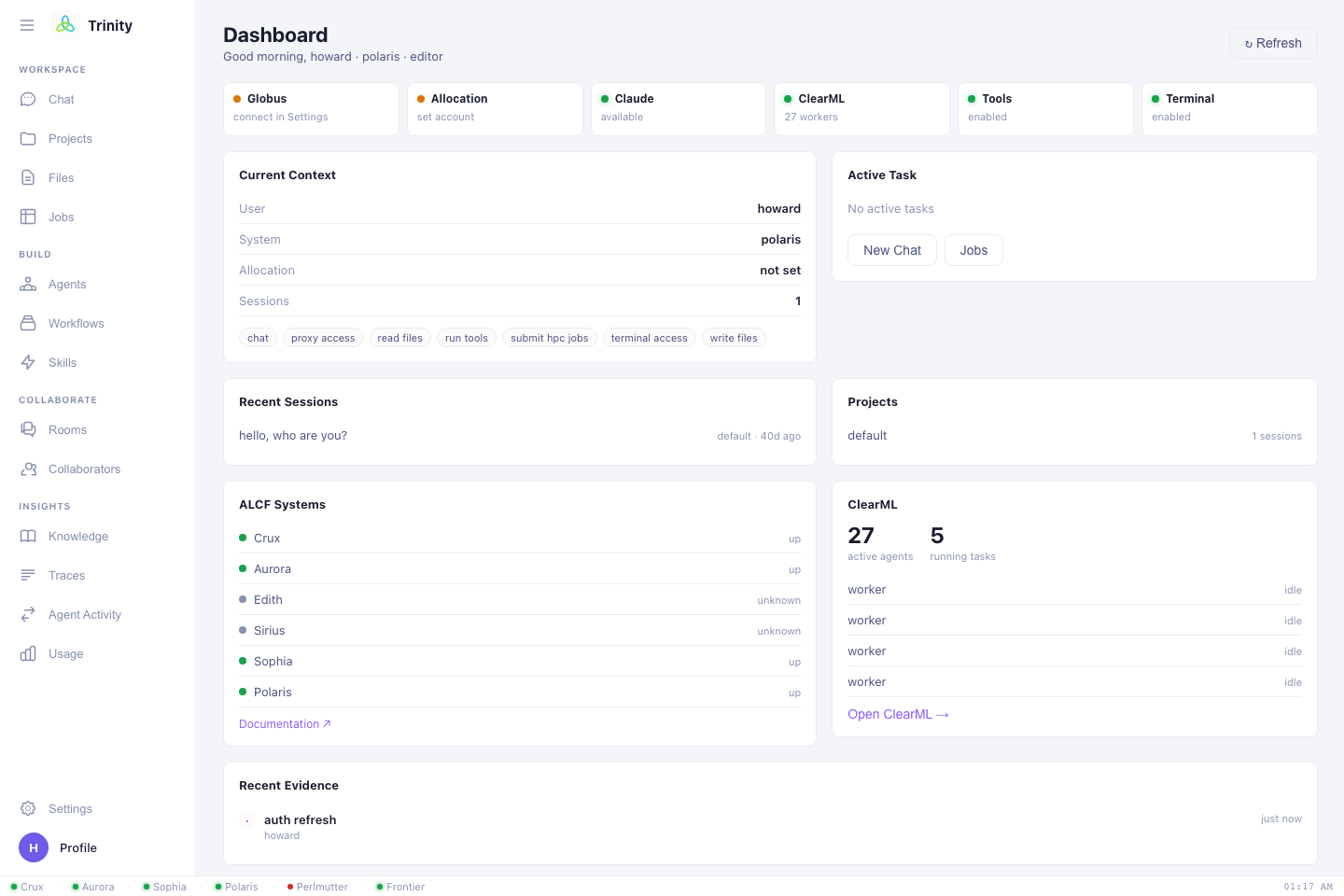
Sessions
Your login is kept in a secure browser cookie that lasts ~24 hours. After it expires, just sign in with Globus again.
3. Authorize compute at OLCF / NERSC (only if you'll use them)
ALCF systems work as soon as you're signed in. For OLCF (Frontier) and NERSC (Perlmutter), Trinity needs a separate compute authorization tied to your identity at that facility. In Settings → Authentication you'll find Connect OLCF / Connect NERSC buttons — click them once and complete the facility login. Trinity stores the resulting tokens per-user and refreshes them automatically.
4. Set your HPC defaults
Before your first job, open Settings → HPC & Compute and fill in, per system:
- Default system — e.g. Polaris, Aurora, Perlmutter, Frontier, Crux
- Default queue — e.g.
debug,prod,preemptable - Allocation — the project/account your jobs are charged to
- HPC username — your username on that facility
These become the defaults Trinity uses when you don't specify them in chat, so you can just say "submit a 2-node job" and it knows where and under what allocation. → Settings
5. Say hello
Open Chat and try something small to confirm everything is wired up:
You: Check whether Polaris is up and show me the current queue.
You: Submit a 1-node
debugjob on Polaris that runshostname, then tell me when it finishes.
Trinity will stream its reasoning and tool calls as it works; the Jobs view shows the live status of anything running in the background.
Tell Trinity who you are
Set custom instructions in Settings → Personalization once, and every chat starts with that context — your default system, allocation, and how you like answers. See Settings.
Next: The chat interface →