Files & projects
Trinity gives you a workspace for the scripts, inputs, and outputs that flow through your sessions — browsable in the UI and reachable by the agent during a chat.
Projects
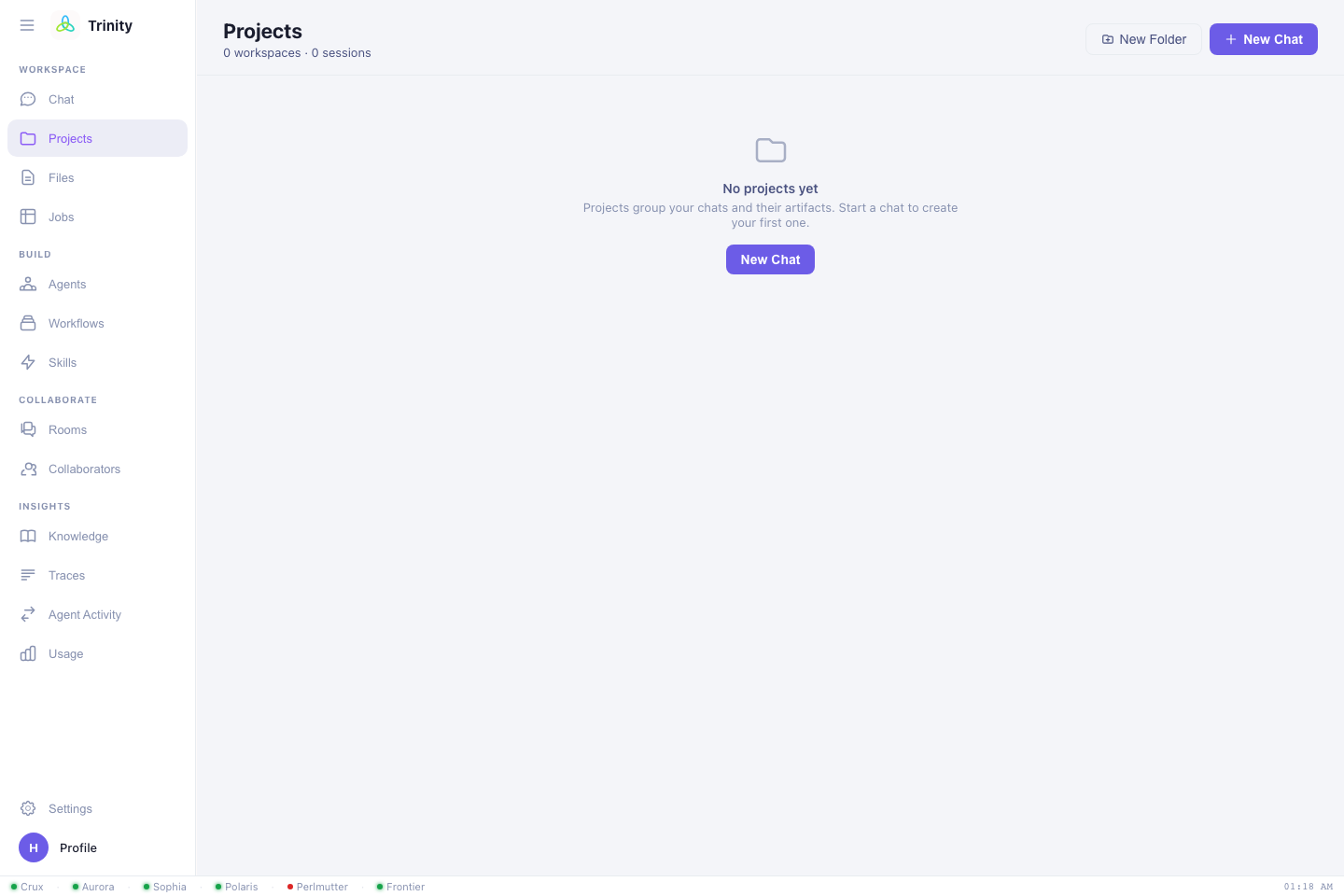
A project is a named workspace that groups related chats and files. Use the
Projects view to create projects (and folders within them) so a campaign's
sessions and data stay together — e.g. a qe-screening project for a DFT study, or
gpt2-aurora for a training run.
- Each chat belongs to a project workspace.
- Files you upload or that jobs produce live under the project.
- Your projects are private to you (tenant isolation); admins manage shared spaces.
The file browser
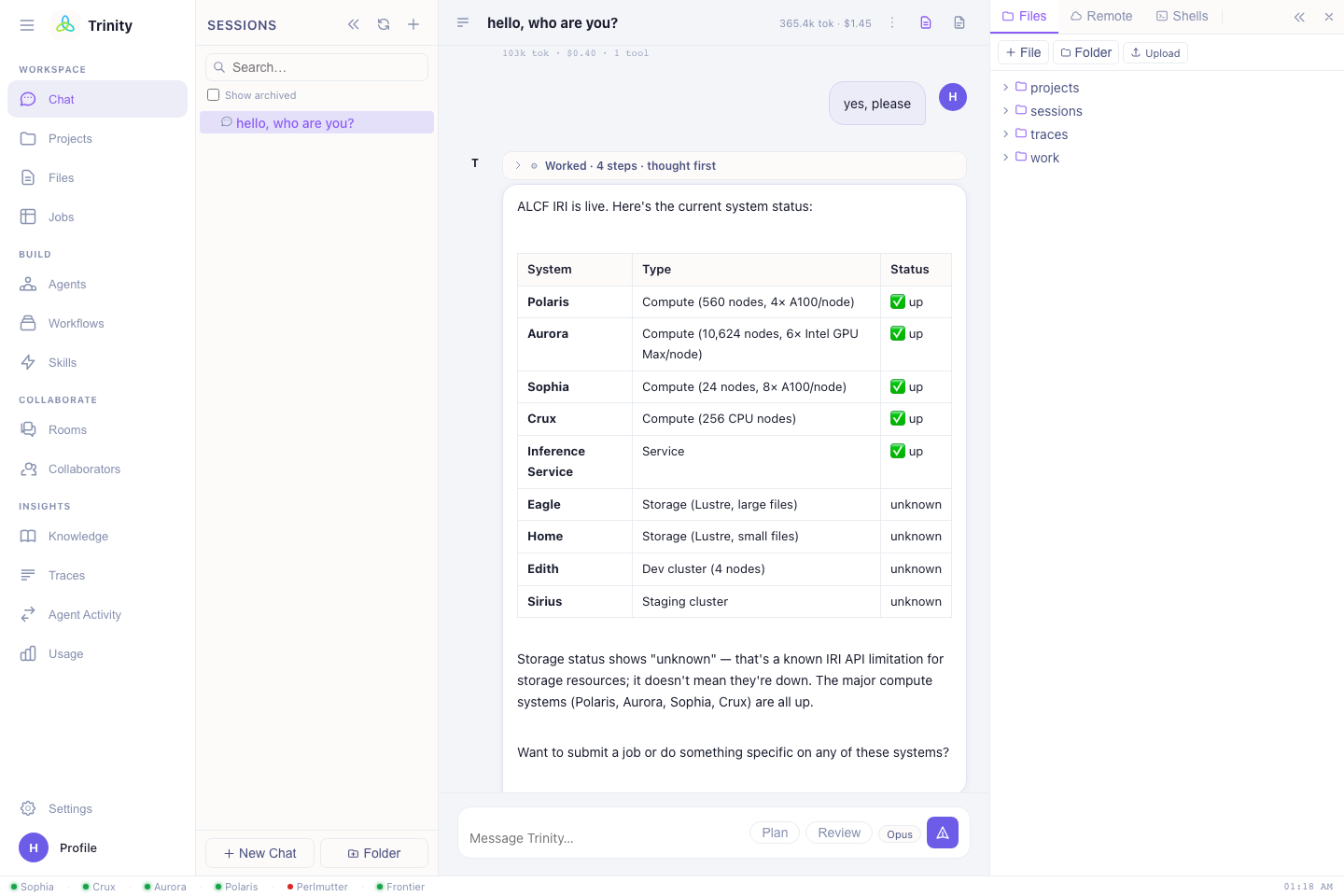
The Files view (and the file panel beside the chat) lets you:
- Browse the directory tree of your workspace.
- Open & read files — logs, outputs, configs, source.
- Edit text files in place.
- Upload files from your computer.
- Download results back to your machine.
- Create, move, rename, and delete files and folders.
Edit while you chat
Keep the file panel open next to the chat to inspect an input deck or a generated
run.sh without leaving the conversation. Artifacts from a response can be saved
straight into your workspace — see
the Artifacts panel.
Files and the agent
When you ask Trinity to "run my train.py" or "fix the error in this log," it
reads and writes files in your workspace as part of the task. Generated job scripts,
inputs, and fetched outputs land there too, so everything for a run is in one place.
Moving data between facilities
To get data in or out of an HPC system, ask Trinity to run a Globus transfer:
Transfer the
outputs/folder from my last Polaris job to Perlmutter scratch.Download the final checkpoint to my laptop.
Trinity starts the transfer and reports its status (you can also watch it in Jobs).
Next: Settings →