Settings
Open Settings from the sidebar to configure how Trinity behaves for you. The panes you'll use most:
Personalization (custom instructions)
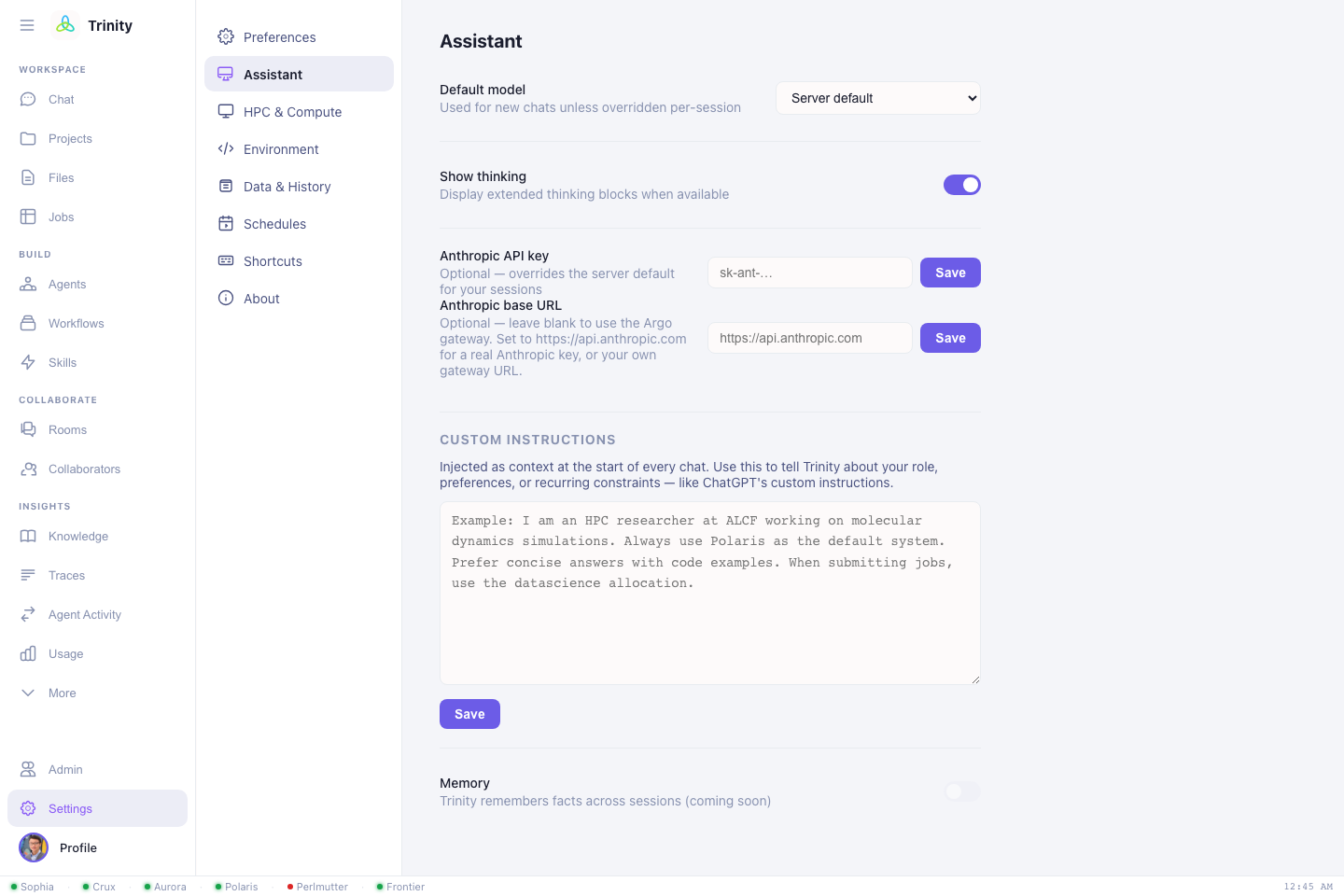
Settings → Personalization holds custom instructions that are injected into every chat. Set this once so you don't repeat yourself:
I am an HPC researcher at ALCF working on molecular dynamics.
Default to Polaris and the datascience allocation.
Prefer concise answers with code examples.
When submitting jobs, always confirm node count and walltime first.
This is the single highest-leverage setting — it makes every session start with your context.
HPC & Compute (job defaults)
Settings → HPC & Compute sets the defaults Trinity uses when you don't spell them out in chat. These are saved per system, so switching your default system restores that system's own queue/allocation/username:
| Field | Example | Used for |
|---|---|---|
| Default system | Polaris / Aurora / Perlmutter / Frontier / Crux | where jobs go |
| Default queue | debug, prod, preemptable, demand |
scheduler queue |
| Allocation | your project/account | what jobs are charged to |
| HPC username | your facility username | run-directory + identity |
With these set, "submit a 2-node job" is enough — Trinity knows the rest.
Models
Settings → Models sets your default reasoning model (Opus 4.8 / Sonnet 4.6 / Haiku 4.5), toggles whether extended thinking is shown, and lets you supply your own API key if your deployment allows it. You can still override the model per message in the chat. → Choosing a model
Authentication
Settings → Authentication shows your Globus SSO status and lets you connect OLCF and NERSC compute (one-time, per facility) and review token expiry. Trinity refreshes tokens automatically; reconnect here if one lapses. → Getting started
Environment
Settings → Environment stores per-user environment variables that your tools need — e.g. experiment-tracking tokens, service credentials, or API keys. They're scoped to your account and injected when Trinity runs work on your behalf.
Profile
The Profile view holds your identity — name, email, institution, department, and an avatar. Your HPC username is set automatically after Globus login.
Other panes
General (theme, notifications, font sizes), Security (account), and Data & History (export your sessions) round out the settings.
Allocations & queues are real
Trinity submits jobs under the allocation you configure here — they consume your real compute hours. Double-check allocation and queue before large runs, and consider a custom instruction that asks Trinity to confirm node count and walltime first.
Next: Agents & rooms →