The chat interface
The Chat view is where you do everything. You type a request; Trinity reasons about it, calls the tools it needs (job submission, file access, data transfer, status checks), and streams the result back in real time.
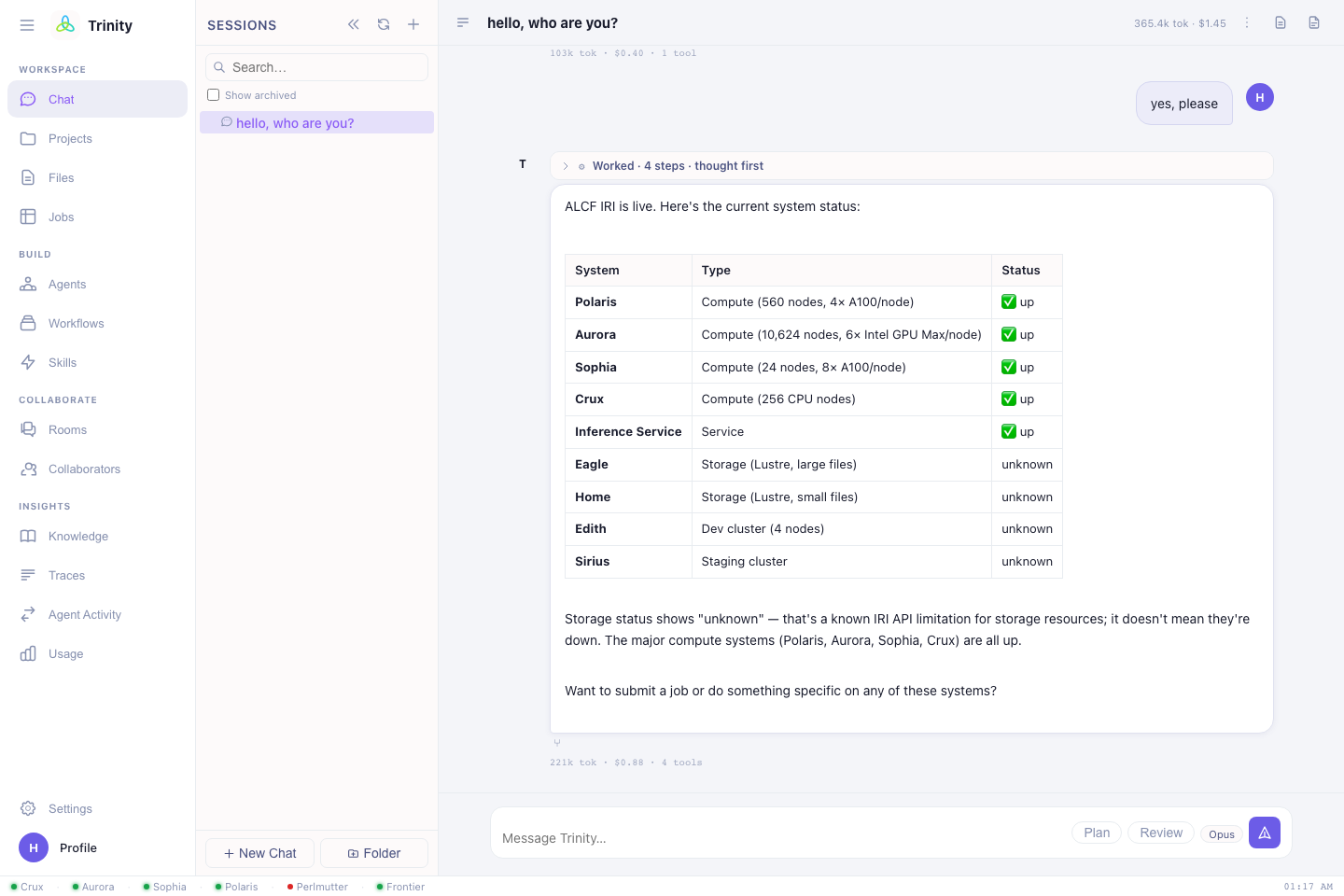
Asking for work
Be specific about what, where, and how big. Trinity fills the rest from your HPC defaults and will ask if something essential is missing.
Good first requests:
Check if Aurora is up, then build LAMMPS from source on it.
Run a Quantum ESPRESSO SCF calculation for this structure on Polaris using the
debugqueue, 1 node.Train GPT-2 on 4 Aurora nodes and track the run.
Port this CUDA kernel to Intel GPUs for Aurora.
Move the outputs in my last job to my laptop with Globus.
Example prompts on the empty screen
When a chat is empty, Trinity shows starter prompts you can click, including:
- DFT Calculation — Quantum ESPRESSO on Polaris
- LLM Training — GPT-2 on Aurora
- MD Simulation — LAMMPS on Polaris
- System Status — check ALCF availability
- Storage Benchmark — DLIO on Eagle
- Port to Aurora — CUDA → Intel GPU
Choosing a model
A model picker lets you choose the reasoning model per message:
| Model | When to use |
|---|---|
| Opus 4.8 (default) | Hardest planning, multi-step campaigns, debugging builds. |
| Sonnet 4.6 | Fast, capable everyday work. |
| Haiku 4.5 | Quick, cheap lookups and short answers. |
Steering a running response
If Trinity heads in the wrong direction, use Steer to interrupt and redirect
mid-task without losing the conversation — e.g. "stop — use the prod queue, not
debug, and 4 nodes." You can also Stop generation entirely.
Artifacts panel
When a response contains a script, config, or code block, it appears in the
Artifacts panel on the right where you can view, copy, save it to your
workspace, or open it in the file editor — handy for grabbing a generated run.sh
or input deck.
Sessions & history
- Every conversation is a session, listed in the left sidebar; search or start a new one any time.
- Rename a session, export it as Markdown, or open its Trace Timeline to see every tool call and observation in order.
- Sessions are private to you and persist across logins.
Context meter
The composer shows how much of the model's context window the current session is using. For a long, unrelated next task, start a new session to keep Trinity focused.
Next: Running HPC jobs →